Controls setup
Press Jump shortly before landing to queue another jump. Use Steam Input for Steam layouts or choose the game’s own rebinding.
Okko The Exiled controls setup
Test the November jump buffer
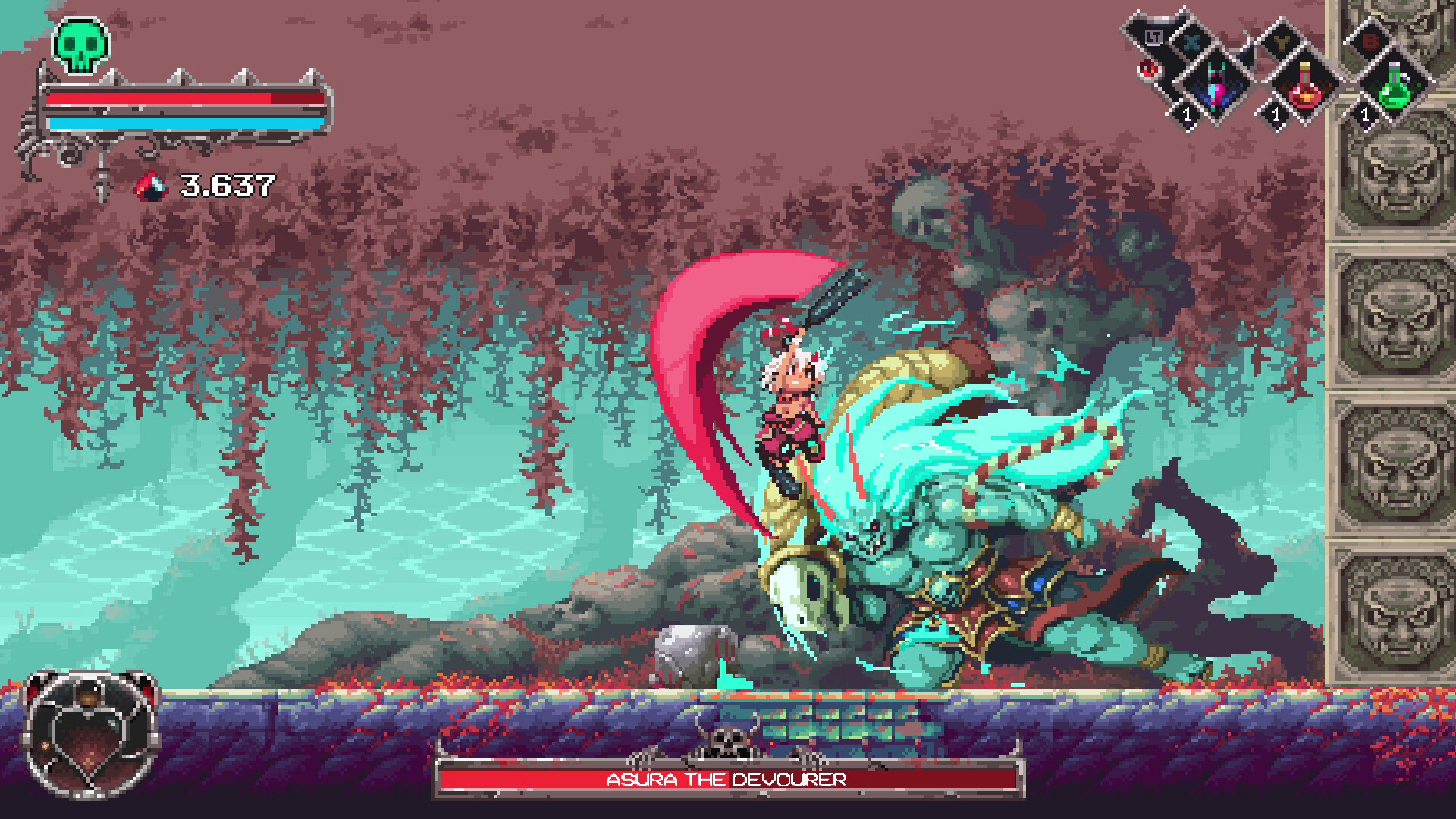
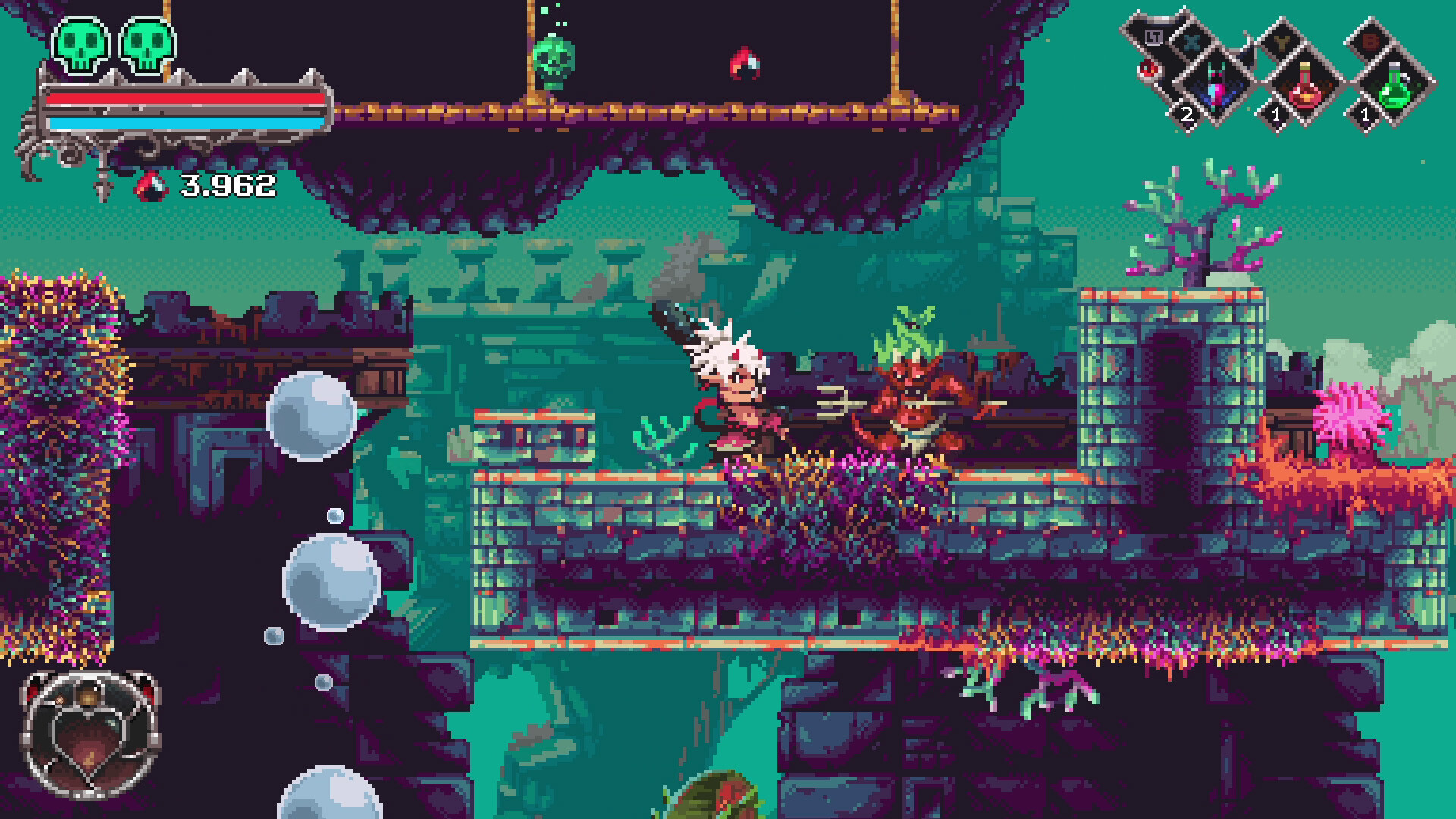
Try a short jump onto raised ground or a one-way platform. Press Jump shortly before landing to queue the next normal jump. If there is no second take-off, try pressing closer to contact. The patch fixes missed jump inputs and unintended double jumps near landing. November 7 update
Set up your pad or keyboard
| If you want to… | Do this |
|---|---|
| Use or share a Steam controller layout | Open the game's Controller properties in Steam and enable Steam Input. If you disabled it to work around a launch issue, re-enable it to use Steam layouts. |
| Use built-in rebinding | Disable Steam Input for Okko and configure the controls in game. The October 7 update added more built-in rebind options. |
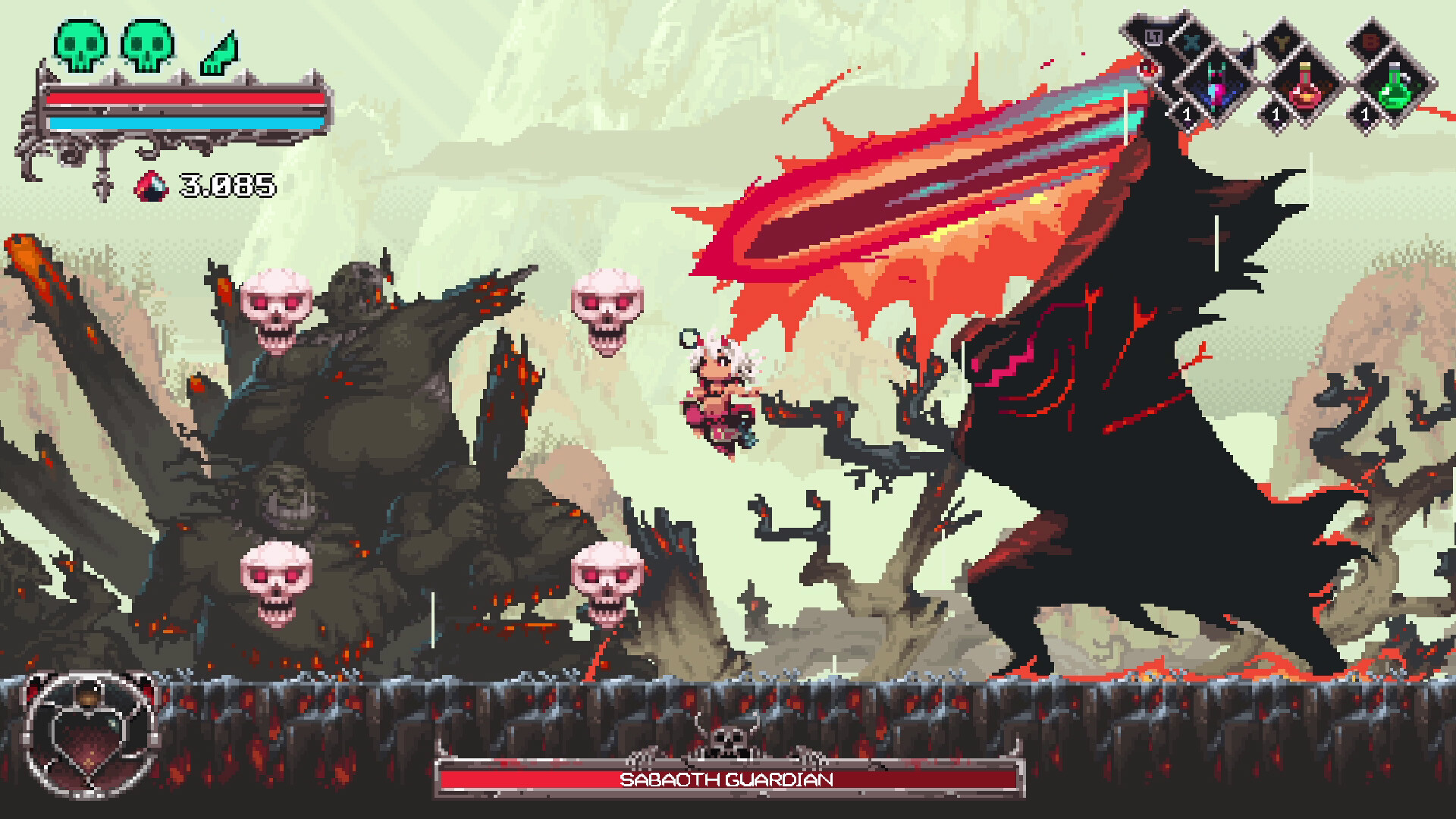
| Check the Dragon Break input | Read the Ability Scroll or follow the Dragon Break tutorial. Use Down + Special Attack with a full blue bar. |
| Use only the keyboard | Check Jump, Attack, Special Attack and Focus. Test one action at a time before trying a sequence. |
| Use a 1440p screen | The October 15 update added 2560 × 1440 and fixed dialogue and menu flicker with Steam Input on. |
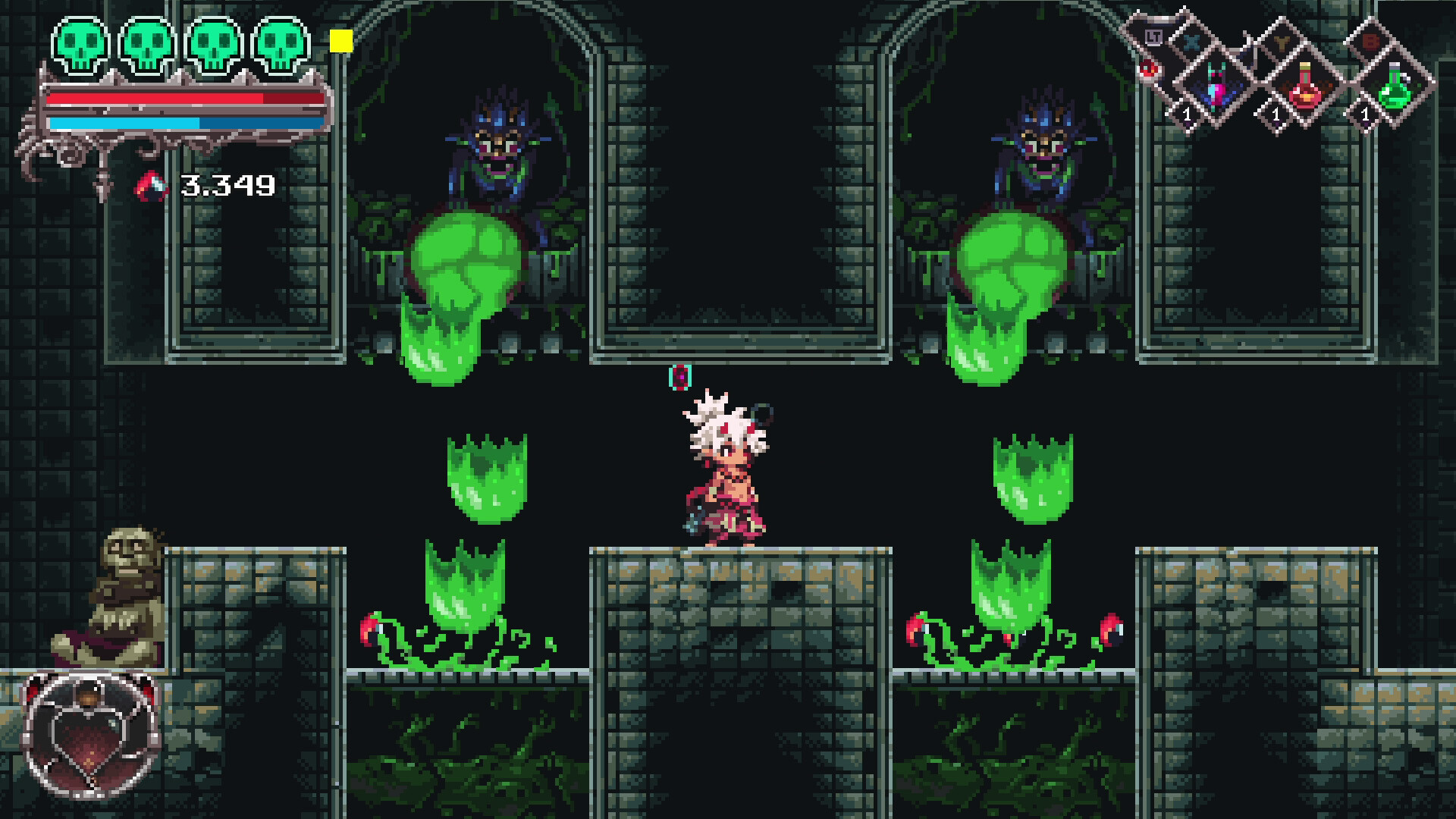
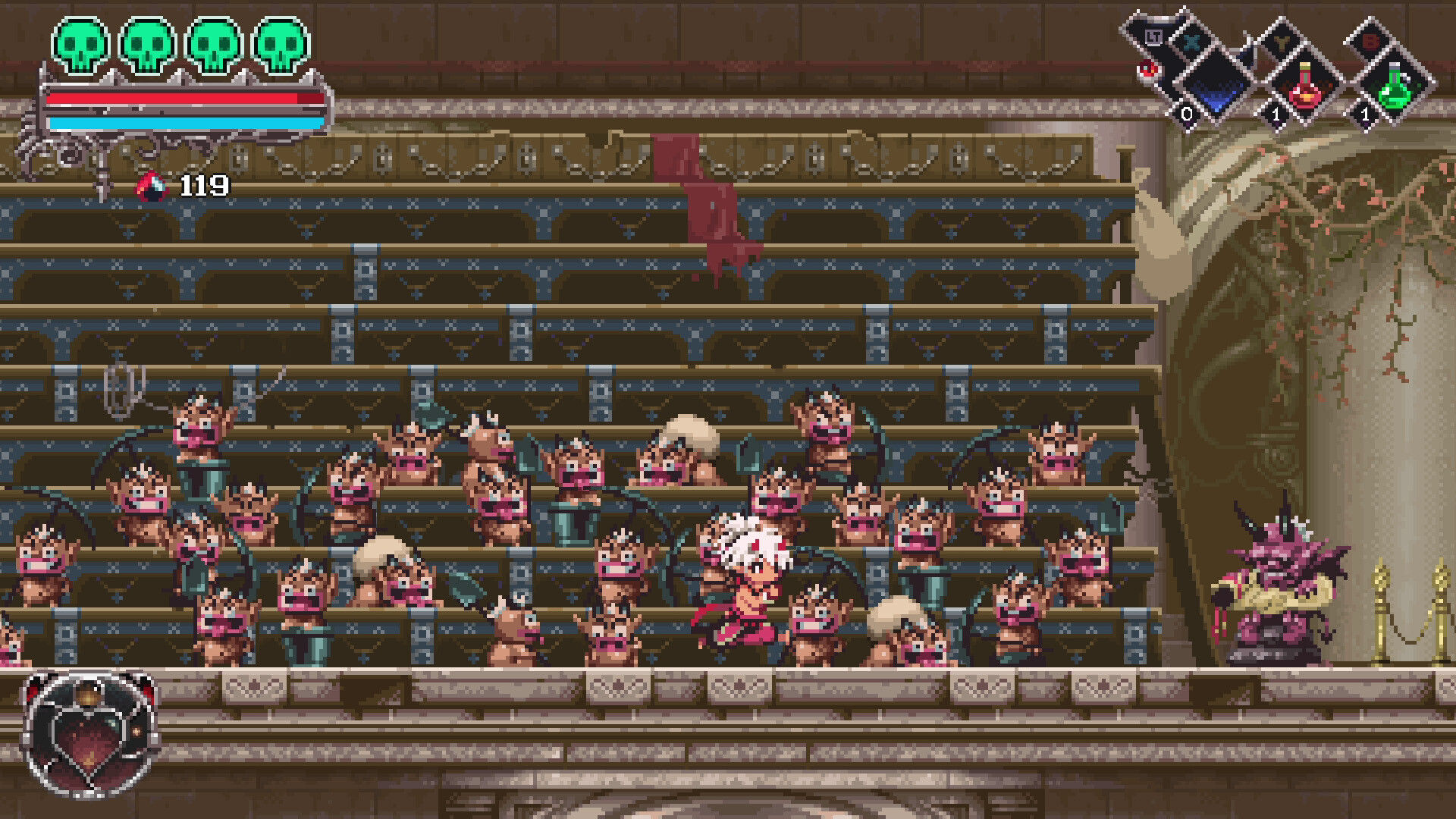
The Ability Scroll prompts follow your current controls in both the standard and full-screen views. The October update also added a sound and flash when you attempt to pick up health, red skulls or potions at full capacity.
Comfort options
Steam lists full controller support, keyboard-only play, camera comfort and separate volume controls. Try the basic moves with Focus off when learning heartbeat timing. Combat inputs · Steam announcements